
Set Up SSO with Okta
Shelf supports single sign-on (SSO) with Okta over SAML 2.0. This guide covers the app integration your Okta administrator creates, and how your workspace owner maps your Okta groups to Shelf roles.
Who does what #
| Who | Task | Where |
|---|---|---|
| Your Okta admin | Create the SAML app and send us its metadata | Okta Admin Console (§1 to §6) |
| Your Shelf contact | Register your Okta app in Shelf | Handled by Shelf |
| Your workspace owner | Map your Okta groups to Shelf roles | Shelf workspace settings, a GUI (§7) |
| Your users | Sign in | Your Okta login page |
Your Okta admin does not need a Shelf account. Everything in §1 to §6 happens inside Okta.
Prerequisites #
Read the general SSO prerequisites first, in particular:
- You have a non-SSO owner account ready to own the Shelf workspace.
- You've told your Shelf contact about any existing standard accounts on your SSO domain, so they can be converted to SSO (they keep their data, so nothing needs to be deleted). See Moving existing Shelf users to SSO.
- You've planned which Okta groups map to which Shelf role (Administrator, Self service, Base).
1. Create the app integration #
In the Okta Admin Console, go to Applications > Applications and click Create App Integration. Choose SAML 2.0 and click Next.
On the General Settings step, enter an app name your users will recognise. We recommend Shelf. Click Next.
2. Service provider (SP) details #
On the Configure SAML step, fill in the General section:
| Okta field | Value |
|---|---|
| Single sign-on URL | https://nmmqcuiasekdacmhwsxk.supabase.co/auth/v1/sso/saml/acs |
| Audience URI (SP Entity ID) | https://nmmqcuiasekdacmhwsxk.supabase.co/auth/v1/sso/saml/metadata |
| Default RelayState | https://app.shelf.nu/oauthcallback |
| Name ID format | EmailAddress |
| Application username | Email |
Keep Use this for Recipient URL and Destination URL checked. Leave the advanced settings (signatures, encryption) on Okta's defaults.
IMPORTANT
Shelf identifies a returning user by the SAML NameID, so it must stay the same on every login. EmailAddress (or Persistent) works. Do not choose Transient: it changes on every login and sign-in fails right after the Okta screen.
3. Attribute statements #
Still on the Configure SAML step, add these attribute statements. The names must match exactly, because Shelf reads them by name. Leave Name format as Unspecified.
| Name | Name format | Value | Required |
|---|---|---|---|
mail | Unspecified | user.email | yes |
firstname | Unspecified | user.firstName | yes |
lastname | Unspecified | user.lastName | yes |
NOTE
Names are lowercase: firstname, not firstName or given_name. A different spelling is not an error in Okta, but Shelf will not find the value and the user's name stays empty.
4. Group attribute statement #
Add one group attribute statement. This is how Shelf learns which role each user should get.
| Name | Name format | Filter |
|---|---|---|
groups | Unspecified | e.g. Starts with SSO-Shelf, or Contains it |
How this works:
- Okta sends group names, not IDs. Each matching group is sent as its own value of the
groupsattribute, and Shelf reads every one of them, whatever order they come in. - The filter only decides which groups leave Okta. Pick a filter that matches every group you will map in Shelf, and as few others as possible. A shared prefix such as
SSO-Shelf(SSO-Shelf-Admins,SSO-Shelf-Staff,SSO-Shelf-Users) makes this easy. - The filter does not do the matching in Shelf. Shelf compares each group name you map in §7 to the names Okta sends, in full.
Contains SSO-Shelfin Okta does not meanSSO-Shelfin Shelf matchesSSO-Shelf-Admins.
Click Next, answer the feedback questions as you like, and click Finish.
5. Assign the app #
Open the app's Assignments tab and assign the groups (or people) who should be able to sign in to Shelf.
IMPORTANT
Assignment and the group attribute filter are two separate settings. A user who is in an SSO-Shelf group but is not assigned to the app is stopped by Okta with "not assigned to this application" and never reaches Shelf. Assigning the same groups you filter on in §4 is the simplest setup.
6. Send us your metadata #
Open the app's Sign On tab. Under SAML 2.0, copy the Metadata URL. It looks like https://your-org.okta.com/app/<app-id>/sso/saml/metadata.
Send your Shelf contact:
- The Metadata URL, or the metadata XML file (see below).
- The domain your users sign in with (for example
yourcompany.com). - The names of the groups you plan to map, and which role each should get.
IMPORTANT
Shelf must be able to download the Metadata URL from the internet. If your Okta org restricts access by IP or network zone, the URL returns 403 access_denied to us and we cannot register it. In that case, open the Metadata URL while signed in to Okta (or use the download link next to it), save the XML, and send us the file instead.
A file does not update itself. If you rotate the app's signing certificate later, send us the new metadata file before switching to the new certificate, or sign-in stops working until we update it.
We register the app and confirm once it's live, usually within 1 business day. Don't test sign-in until you hear back.
7. Map your groups to Shelf roles #
Once the app is registered, your workspace owner maps each Okta group to a Shelf role in workspace settings > SSO.
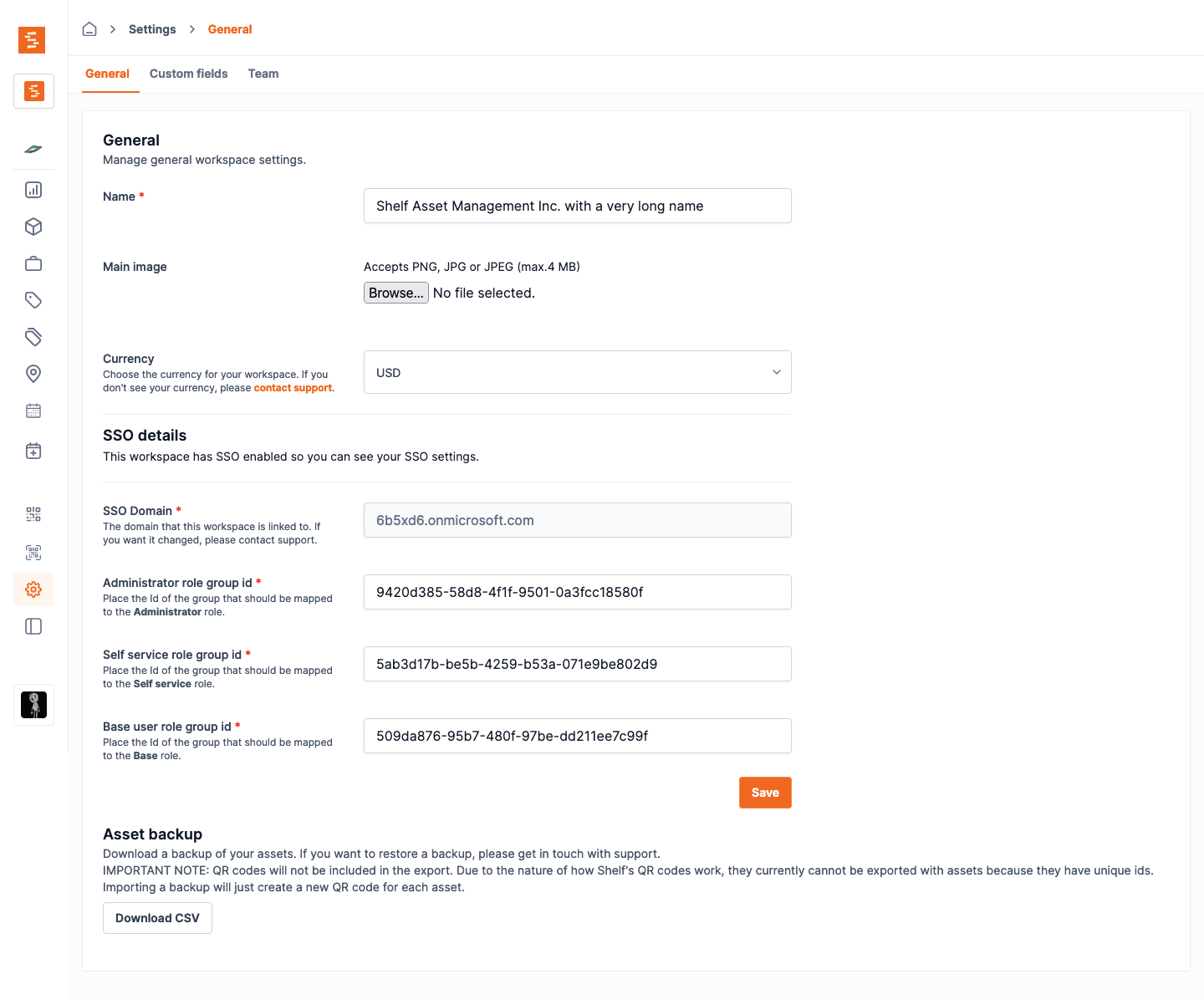
Enter the group name exactly as it appears in Okta next to each role you use:
| Shelf role | Example Okta group name |
|---|---|
| Administrator | SSO-Shelf-Admins |
| Self service | SSO-Shelf-Staff |
| Base | SSO-Shelf-Users |
Rules to know:
- Use the name, not the Okta group ID. Okta sends names (this is different from Microsoft Entra, where you paste Object IDs).
- Multiple groups for one role: each field accepts several names, separated by commas. Anyone in any of them gets that role.
- Matching ignores letter case and surrounding spaces, but is otherwise exact. Copy the name from Okta to be safe.
- Precedence is Administrator > Self service > Base. A user whose groups match more than one role gets the highest. A user only ever holds one role per workspace.
- You only need to map the roles you use, but at least one must be mapped. A single group is enough.
8. Test single sign-on #
Go to /sso-login, enter your domain, and sign in as a test user who is assigned to the app:
- A user whose groups match a mapped role lands in the workspace with that role.
- A user with no matching group lands on the pending-assignment screen. This is expected, and it resolves as soon as an admin maps their group.
You can also preview what Okta sends: on the Sign On tab, click Preview SAML (or use the Preview the SAML assertion link while editing the SAML settings) and check that mail, firstname, lastname and groups are all present.
Moving existing Shelf users to SSO #
If people on your domain already have standard (email/password) Shelf accounts, they do not need to be deleted or recreated. Shelf converts them to SSO, keeping their data and workspace memberships. The first SSO sign-in after conversion lands the user in their existing account, with all their data and workspaces. The EmailAddress Name ID from §2 is all it needs. The one exception is a user who tried to sign in with SSO before their account was converted: their first SSO sign-in after conversion shows "Your account is now on single sign-on" and asks them to sign in with SSO once more. After that they sign in once, as usual. Convert accounts before announcing SSO to your team to avoid this extra step. Map your groups (§7) before the accounts are converted, because a converted user whose groups map to no role loses access to the workspace at their first SSO login (the workspace owner keeps their Owner role and access). See Existing standard accounts on your domain for the full rules.
Troubleshooting #
Okta says the user is not assigned to the application. The user is not assigned to the app in Okta. See §5.
Sign-in fails right after the Okta screen, with no clear error. Check the Name ID format (§2). It must be EmailAddress or Persistent, never Transient. Also check that the Single sign-on URL and Audience URI match §2 exactly.
The user signs in but their name is empty. An attribute statement name is misspelled or capitalised differently. It must be firstname and lastname, all lowercase (§3).
A user always lands on the pending-assignment screen even though you mapped their group. Either the group does not pass the filter in §4 (so Okta never sends it), or the name pasted in Shelf differs from the Okta group name. Preview the SAML assertion for that user (§8) and paste the exact value you see under groups.
We report that your Metadata URL returns 403. Your Okta org blocks the metadata endpoint for requests from outside your network. Send us the metadata XML file instead (§6).